
Seagull shelf

Mac and iPhone

Poof

Poof is an email app for Mac and iPhone that asks one question of every message: how much does this need you right now? Each email is read properly and put in its place by that answer, so the bill due tomorrow sits above the newsletter you opened last week. There are no folders to file into and no rules to write. Read and unread stop mattering, because they never told you much anyway. The reading happens on your own computer.

On your own Mac

Wand

Wand is the part of Poof you never see. It lives on your own Mac, keeps a copy of your mailbox there, and reads every message as it arrives, using the AI subscription you already have. It works out how much each conversation needs you and when, so Poof on your Mac and your iPhone only has to show you the answer. The reading happens on your own machine, not on someone else's server.

How to get Poof

Psst: only what's waiting on you

What matters, first

Whisper: tell Poof, not the sender

What it's like to use

What matters, first

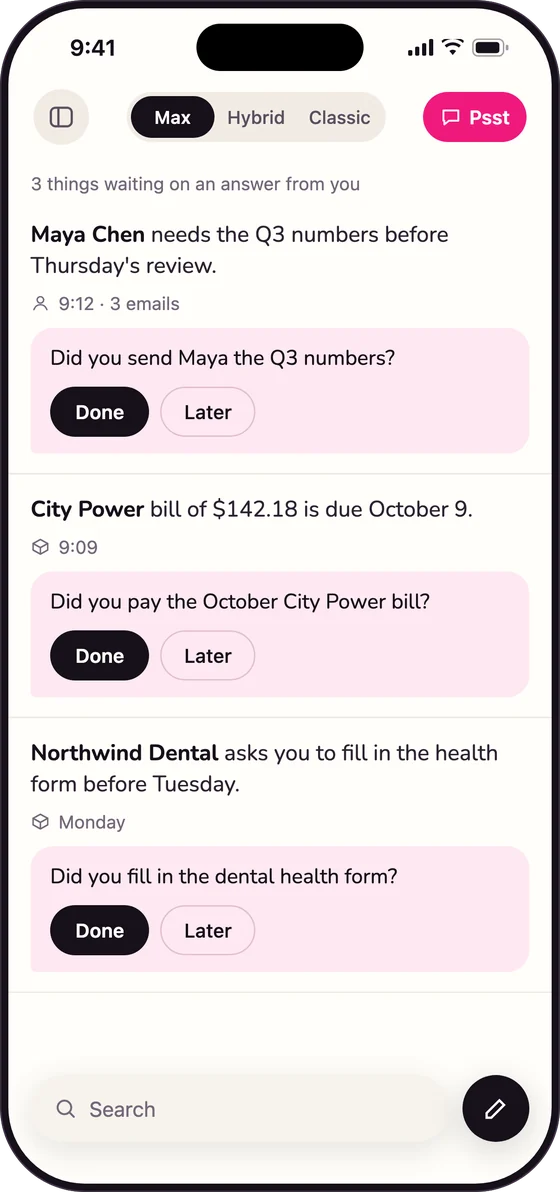
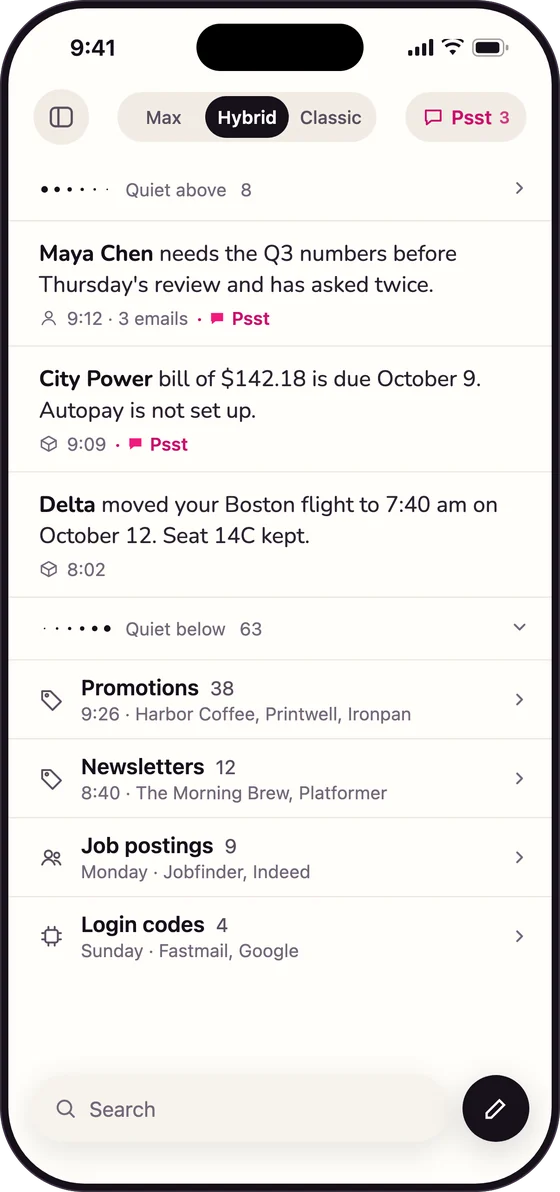
Poof reads every email and works out how much it needs you, and when. A bill due tomorrow or a flight that moved rises to the top; the newsletter you opened last week sinks. Each conversation is one line, written by Poof: who it's from and what it wants. Three words at the top choose the order. Max puts what needs you first, Hybrid keeps the order mail arrived in and moves the noise out of the way, and Classic is simply newest first.

Loops it helps you close

When something is owed, a reply you promised or a form you still have to send, Poof keeps that thread open and checks in with you: Did you send Maya the Q3 numbers? Tap Psst to see only these. Done closes the loop. Later puts the question away until it's time to check in again, and the thread comes back when it matters.

Whisper to Poof

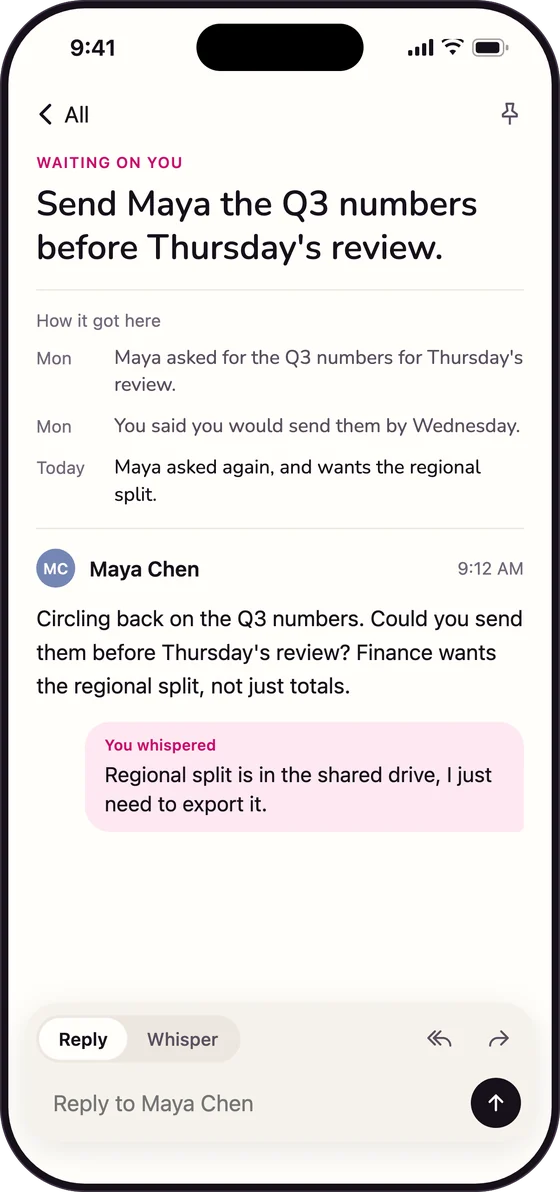
Inside any thread you can whisper: tell Poof something it can't know from the emails, in your own words. The file is in the shared drive. This one's already paid. This doesn't belong here. Only Poof reads it, nothing is sent to anyone, and Poof takes it into account, so a whisper can close a loop or move an email where it belongs.

One thread per matter

An order sends four emails: confirmed, shipped, out for delivery, delivered. Poof keeps them together as one thread, even across different senders and subject lines, and tells you where the matter stands and how it got there. The original email and its attachments are a tap away, and remote images stay off until you load them.

Quiet, folded away

In Hybrid, the kinds of mail you choose, Social and Promotions to start, fold into small piles by category. They never notify you. Open a pile to see all of it, or delete all of it at once. Your main mail never folds.

Replies that start written

When you reply, Poof can start you from a draft, and you can ask it to change the draft before you send. You choose how Poof writes: Plain, Direct, Warm, Brief, or your own style.

On your Mac and your iPhone

Poof runs on both. On the Mac, the thread opens beside the list. Both have a dark mode and three text sizes.

And also

  • Search finds mail as ordinary rows, newest first, with your match marked.
  • Swipe a waiting thread for Done or Later, or swipe left to delete. Press and hold for Pin, Should be higher and Less important.
  • Notifications read like the list: the same one sentence, with a small mark for what kind of news it is.
  • Unsubscribe from a sender with one button. Nothing happens until you tap it.
  • Add more than one account through your mail provider's own sign-in page. You never type your password into Poof.
  • Poof never deletes anything on its own.

What you need

  • A Mac that stays on, running Wand, with the AI subscription you already have, connected through Piggy.
  • macOS 13 or later, and iOS 17 or later on iPhone.
  • A Poof account, set up with a code sent to your email.

Your mail is read on your own Mac, by your own Wand. Poof's own service never stores your mail.

How Poof fits together

An email app that comes with a wiring diagram! Totally normal

ONLINEAT HOMEWITH YOUYour MailPiggy Asks Your AIWand Signs InPoof Finds WandPrivate LinkTailscaleYour Email AccountsSee supported providersYour AI SubscriptionThe one you already haveYour Poof AccountTies your devices to your WandWandReading your mailClaude CodePiggyTailscaleWandOptionalA Mac That Stays OnIt can be the Mac you use every dayPoofTailscaleYour MacsPoof, and Tailscale for away from home9:41PoofTailscaleYour iPhonePoof and Tailscale

Installation checklist

Because one app would have been far too easy

The payoff: your emails are never stored on our servers, and your data never feeds an AI of ours.

At home, on the Mac that stays on

  1. Install it and sign in with your Claude subscription. It is how Poof reaches your AI.

  2. Install it and sign in to Claude in Piggy. It is the bridge between Wand and your AI.

  3. Sign in. It lets your iPhone and other Macs reach Wand from anywhere.

  4. Download and open it. Its setup connects everything above, installs anything you skipped, and asks you to approve Wand in Piggy.

  5. The last step of Wand's setup: your email address and the code we send you.

With you, on your iPhone and Macs

  1. On your iPhone and each Mac you read mail on, the home Mac too if you like. Sign in with the same Poof account; it finds Wand by itself.

  2. On the Mac that stays on, click Allow when Poof asks to connect.

  3. For using Poof away from home. Sign in with the same Tailscale account.

  4. In Poof, open Accounts, add an account and sign in on your provider's own page.

    See the supported providers